Uploading files via FTP
FTP upload profiles allow files to be sent directly into MediaLab. To let MediaLab pull files from your FTP server, we recommend setting up a Pull profile instead.

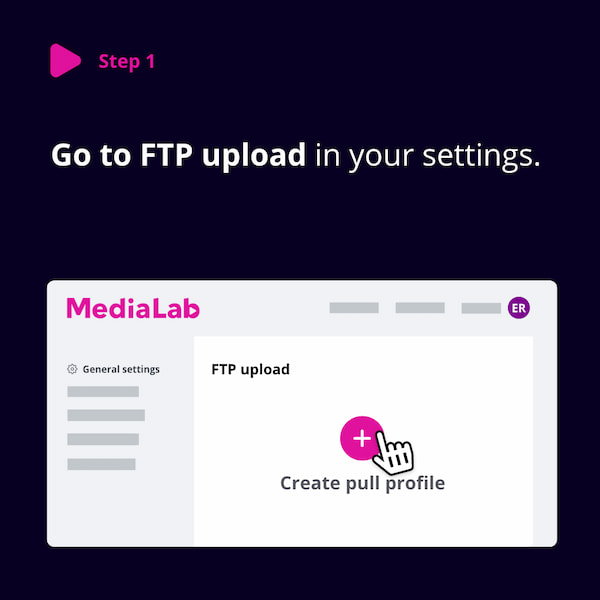
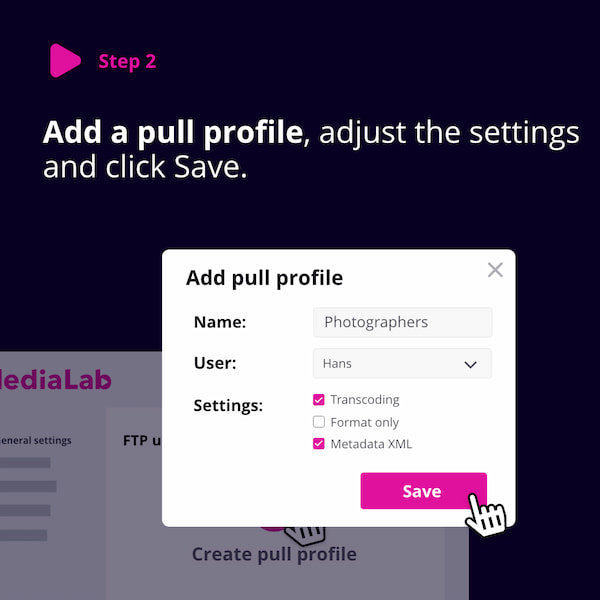
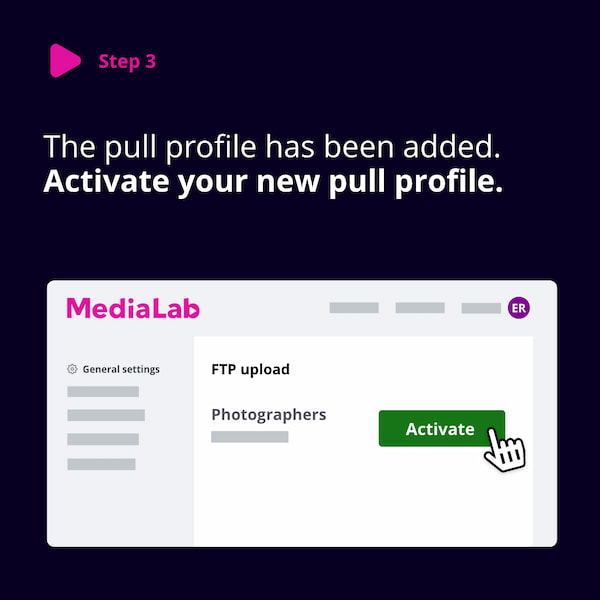
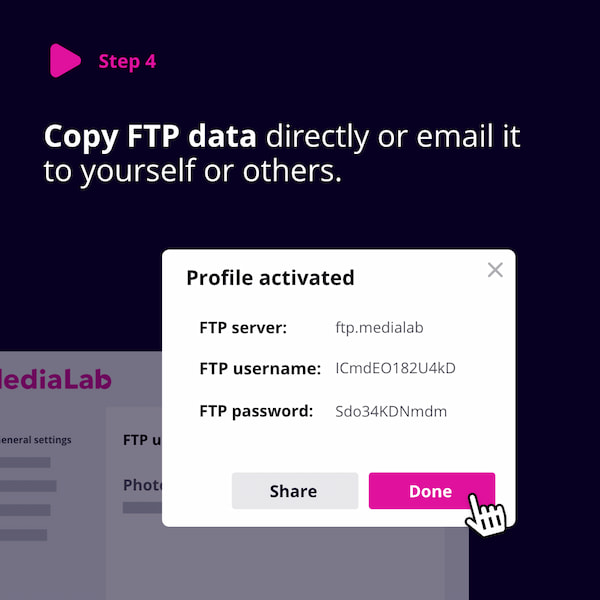
Creating an FTP Upload Profile
- Go to Settings → FTP Upload.
- Click + (Add) and name your new profile (e.g., Avid import).
- Click Edit to configure details:
- (Administrators only) Select the user that owns the profile. This user will be listed as the uploader and must have access to the target folder.
- Choose which users should receive notifications when files are uploaded.
- Select the target folder where new files will be stored.
- Set your folder strategy.
- Click Save to confirm changes.
- Click Activate to enable the profile.
A dialog will display your FTP login details (server, username, and password). Be sure to save the password — it cannot be retrieved later.
You can now use the provided FTP details in your FTP client to upload files into MediaLab.
Note: You must have uploader rights, and the Pull add-on must be enabled for your Lab. Contact support if it is not available.