Downloading files with MediaLab Connect
The ML Connect app provides a streamlined way to download media from MediaLab directly to your computer.
Installing ML Connect
Before using this workflow, make sure ML Connect is installed on your PC. Installation instructions are available on the dedicated support page.
Download Workflow
- Navigate to the files you want to download in your MediaLab environment.
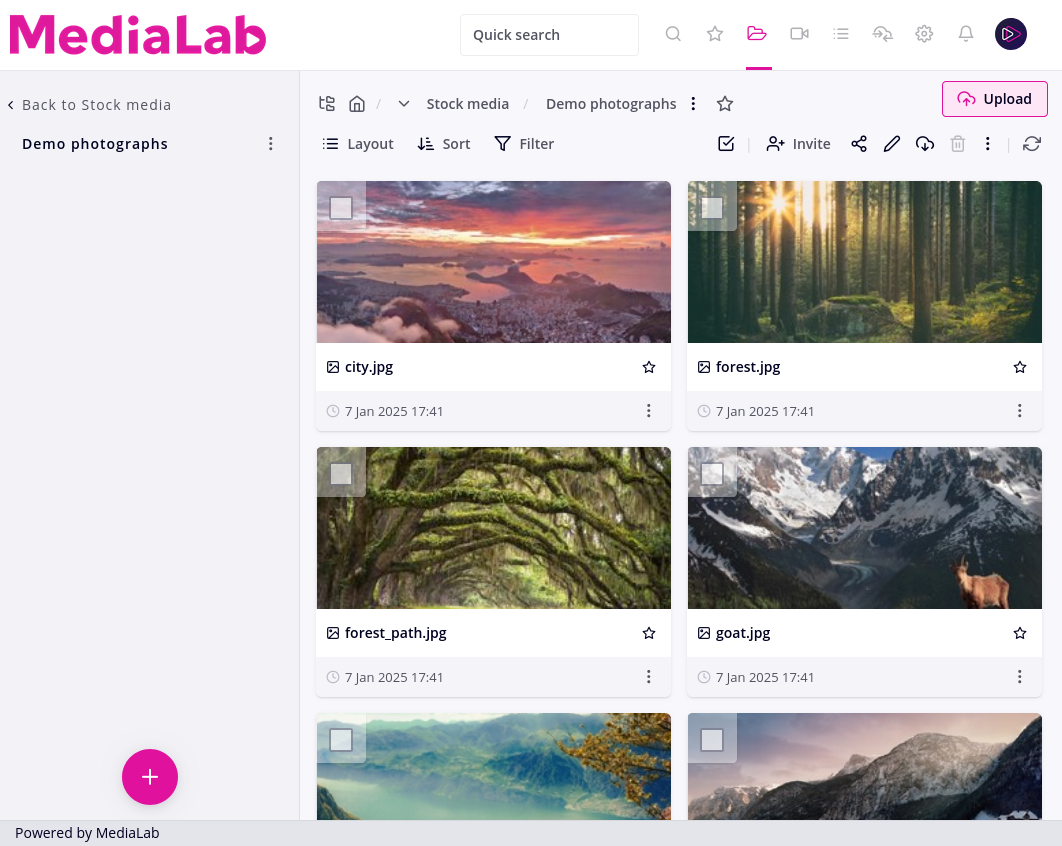
- Select the files and click the Download button.
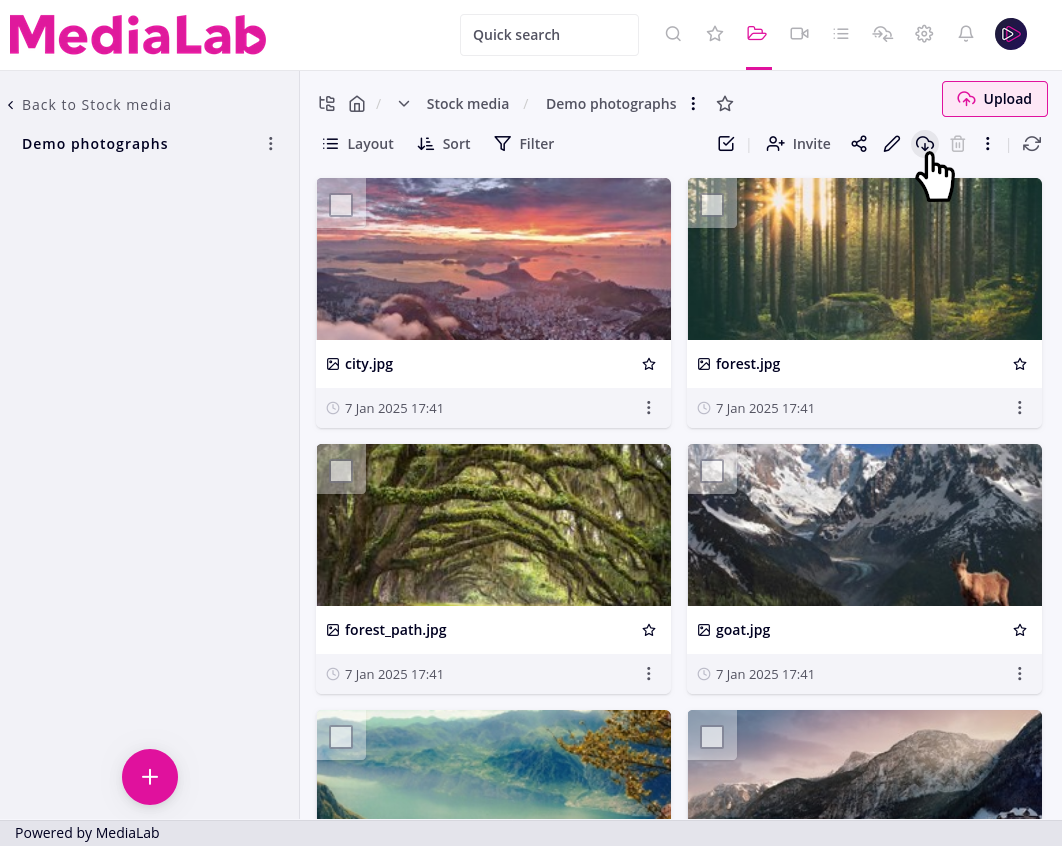
- Choose Download with Connect.
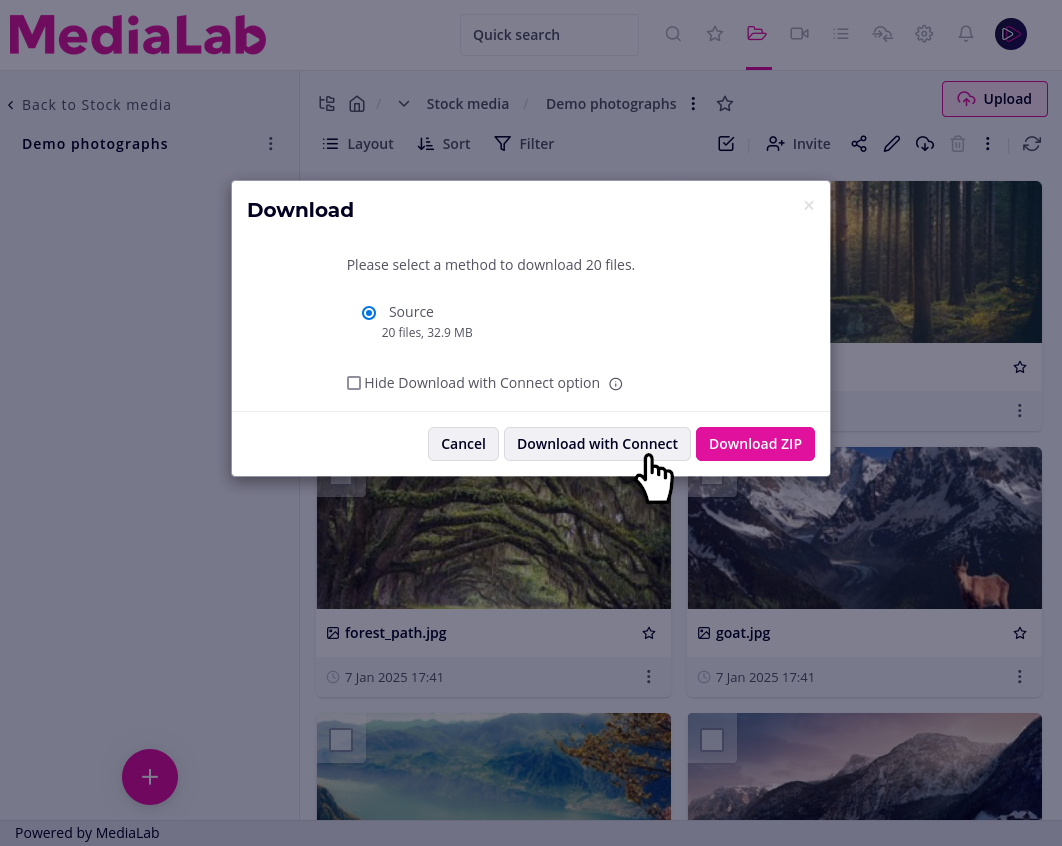
- The Connect app will open. Select your destination folder and configure any additional settings.
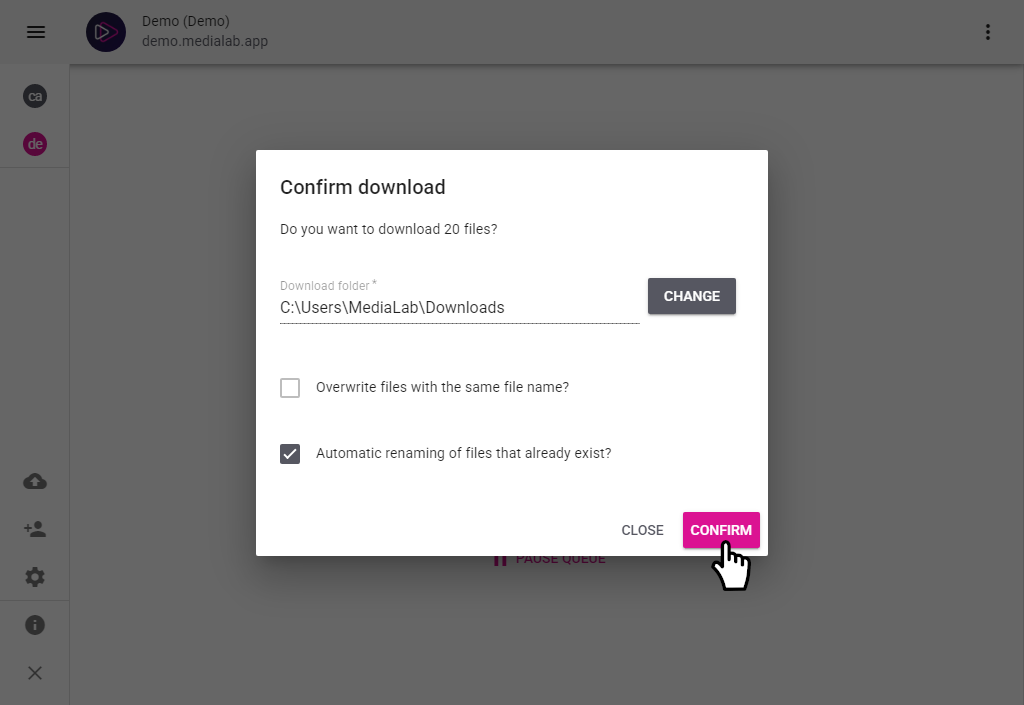
- Click Confirm to start the download.
Your files will now be transferred to your computer using ML Connect.
Downloading with Connect (Push Downloads)
You can also automatically receive content pushed from MediaLab using Push destinations.
- Once the app is installed, go to Settings → Cloud connections in your MediaLab environment.
- Select MediaLab Connect. You’ll receive a link to pair the app with your account (this can only be done on one computer).
- A Push destination will automatically be created after pairing.
- Go to Push destinations, click the Auto-push icon on the right, and add your preferred auto-push rules to automatically download new content to Connect.