Installing and logging in to MediaLab Connect
You can download the latest version of ML Connect from the MediaLab download page. To ensure the installer hasn’t been tampered with, check our file integrity page before proceeding.
Installation Instructions
macOS
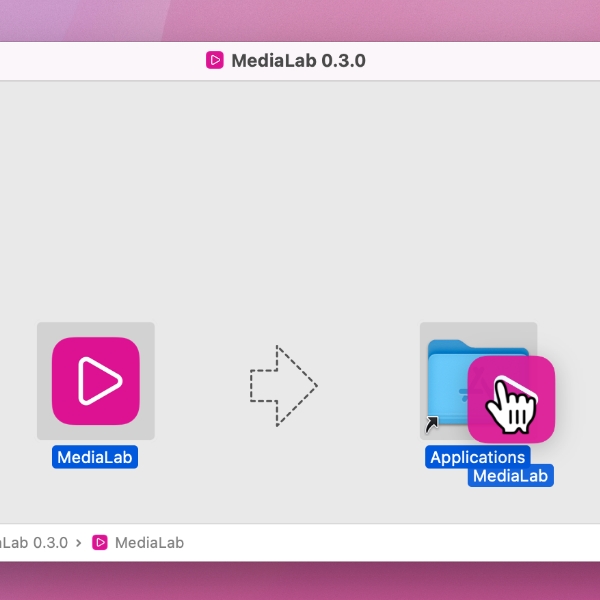
- Open the downloaded .dmg file.
- Move MediaLab to your Applications folder.
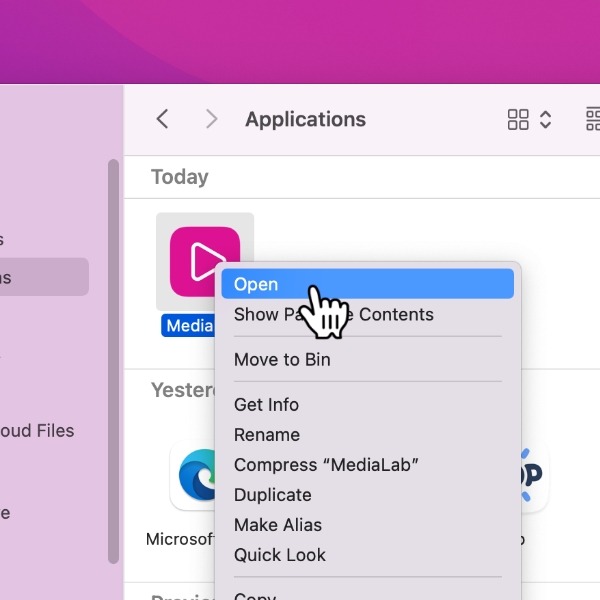
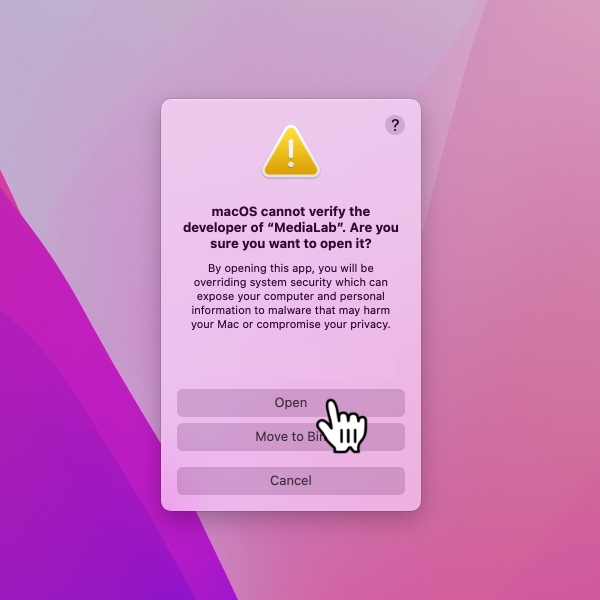
- Right-click the app and choose Open (needed the first time due to security settings).
Windows
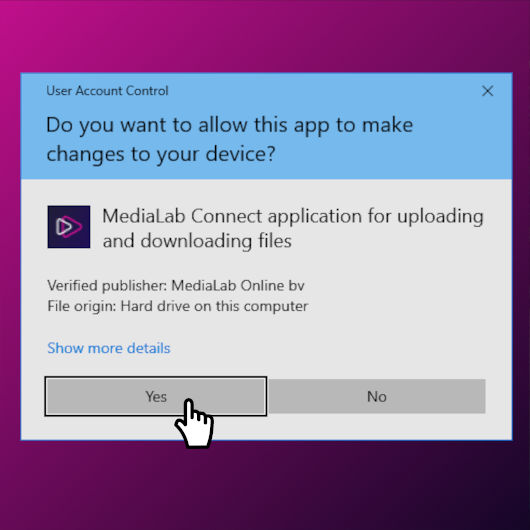
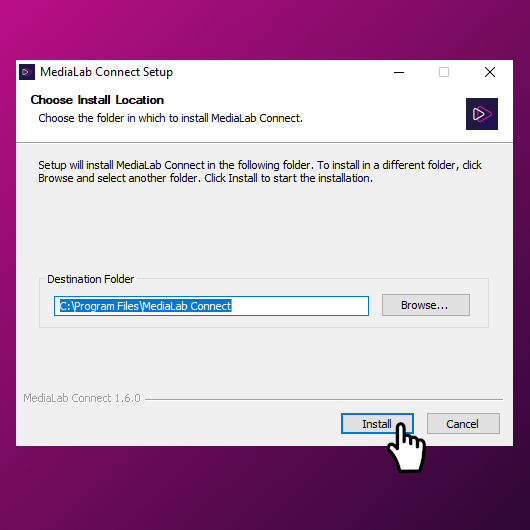
- Open the downloaded .exe file (double-click).
- Click Yes to confirm installation.
- Follow the step-by-step installation wizard.
Linux (.deb with GUI)
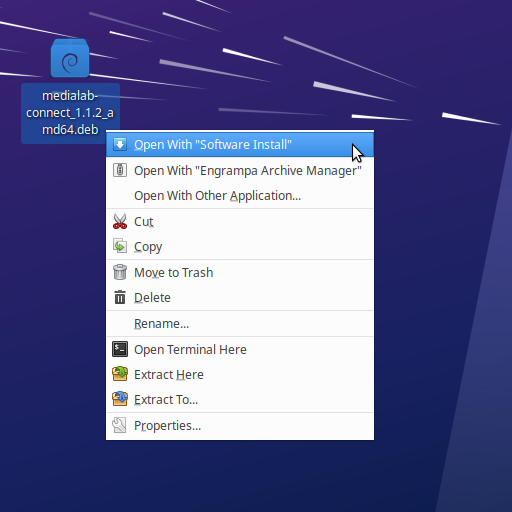
- Locate the downloaded .deb file.
- Right-click → Open With → Software Install.
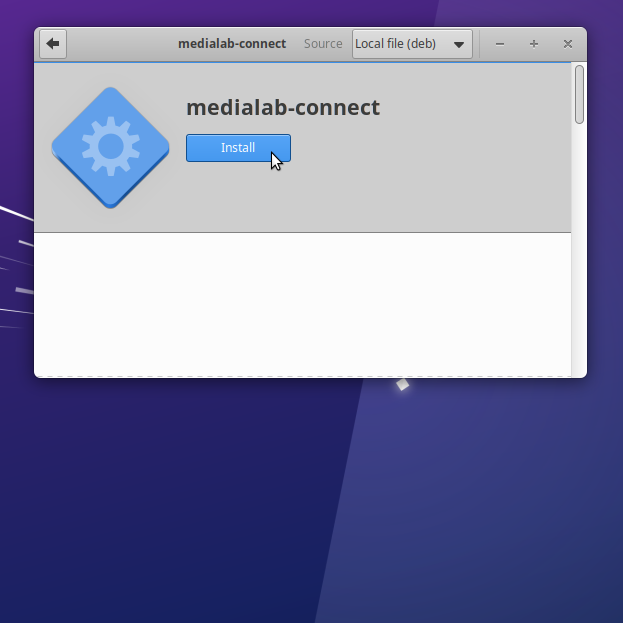
- Click Install.
Linux (.deb with command line)
- Open a terminal.
- Navigate to the folder containing the .deb file.
- Execute command after checking the version in .deb file
sudo dpkg --install "medialab-connect_<version>_amd64.deb"
Linux (AppImage with command line)
- Open a terminal.
- Navigate to the folder containing the .AppImage file.
- Execute commands after checking the version in .AppImage file
chmod +x "MediaLab_Connect-<version>.AppImage"./"MediaLab_Connect-<version>.AppImage"
Uploading with Connect
To upload via MediaLab Connect, you’ll first need to log in using a private token.
- Log in to MediaLab through your browser.
- Go to Profile → API access (top right).
- Click Generate private token.
- We recommend choosing no expiry date for long-term connections.
- Open the Connect desktop app and add your account using your Lab URL and generated token.
- In the app, go to Settings → Watchfolders to create or select a local folder. Any files placed in this folder will automatically upload to MediaLab.
**Note:**The private token is linked to a single user account. All uploads made through Connect will appear under that account